 livephotohub.com
How to Make a Video a Live Photo on iPhone
In Safari on your iPhone, open the video converter at https://livephotohub.com/ and pick a recording from your phone. Choose a cover frame, then save the moment as a Live Photo.
No app to install. Videos stay on your iPhone in Safari with custom clip length and cover selection.
Convert your video with LivePhotoHub
- Tap Choose file on the homepage and select a recording from your photo library or Files.
- The default clip starts at the beginning and lasts three seconds. Keep it if that’s the moment you want. For an action later in the video, adjust Clip start and Clip length. To keep the whole recording, leave the start at zero and set Clip length to the video’s full duration.
- Tap a thumbnail beneath the video for your cover. Choose Live Photo under Export format, then tap Create Live Photo.
- Press and hold the preview to check the motion. Tap Open share sheet to choose an app, or see the import steps below if the button says Download pair (ZIP).
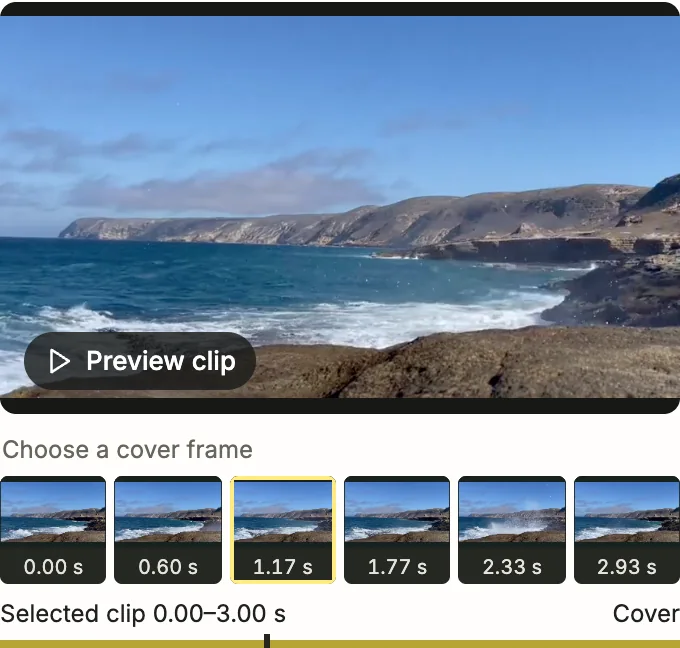
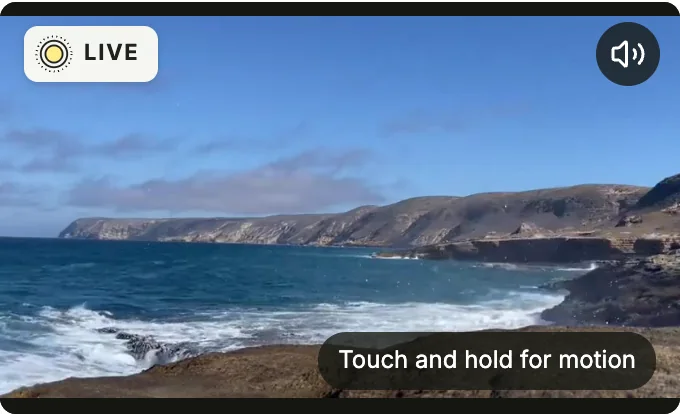
To try the wave pictured here, open the Live Photo gallery on the homepage. Select Coastal surf to preview it, then choose Edit this sample.
Find and play the Live Photo in Photos
If Safari opens the share sheet, choose a save or import option available on your iPhone. Open the saved picture in Photos, look for the Live badge, then press and hold to play it.
If sharing saves two separate items, return to the tool, tap Download pair (ZIP) and follow the import steps below.
Taking a new shot? Use Live Photos in the iPhone camera
- Open Camera and switch to Photo mode.
- Look for the Live Photos icon (concentric circles). If it has a slash, tap it to turn Live Photos on. If the icon is hidden, open the camera controls.
- Hold your iPhone steady as you press the shutter and for a moment afterward.
The camera captures about 1.5 seconds on either side of the shutter press. Apple’s guide to Live Photos shows the camera icon and where to find the result in Photos.
Common questions about saving and playback
I only see the cover. How can I tell if the motion was saved?
The library thumbnail shows the cover. Open the photo, look for the Live badge and press and hold to play. If you downloaded the JPG cover, that file holds just one frame. Switch back to Live Photo in the editor. If it shows Created, tap Save. If you changed the clip settings, create it again first.
Why did I get a ZIP, and how do I import it on iPhone?
One Live Photo has a JPG cover and a paired MOV with its motion and sound. The ZIP keeps them together in one download. Tap it in Files to unzip it. Open an app that can import Live Photo pairs, select both files together and save to Photos. Press and hold the saved picture to check playback.
Can I set the Live Photo as an iPhone Lock Screen wallpaper?
After saving to Photos, select the picture in Lock Screen settings and check whether you can turn on the Live Photo playback button. If you can, wake the screen to check the animation.
Can I convert a video longer than 3 seconds?
Yes. The default 3-second cut matches native Live Photos, but you can extend Clip length to keep a longer moment. Longer clips take more time to encode and produce larger files.
How can I share the motion with someone on Android?
After creating the Live Photo, tap Save as a video (MP4) and send the downloaded clip. Your friend can play the part you picked right in the chat. For a Motion Photo in their gallery, choose Pixel, Xiaomi or Samsung Galaxy under Destination device and send the downloaded JPG as a file.