Select Choose a file and open a video or GIF. For sound, start with the original recording.
Trim the action
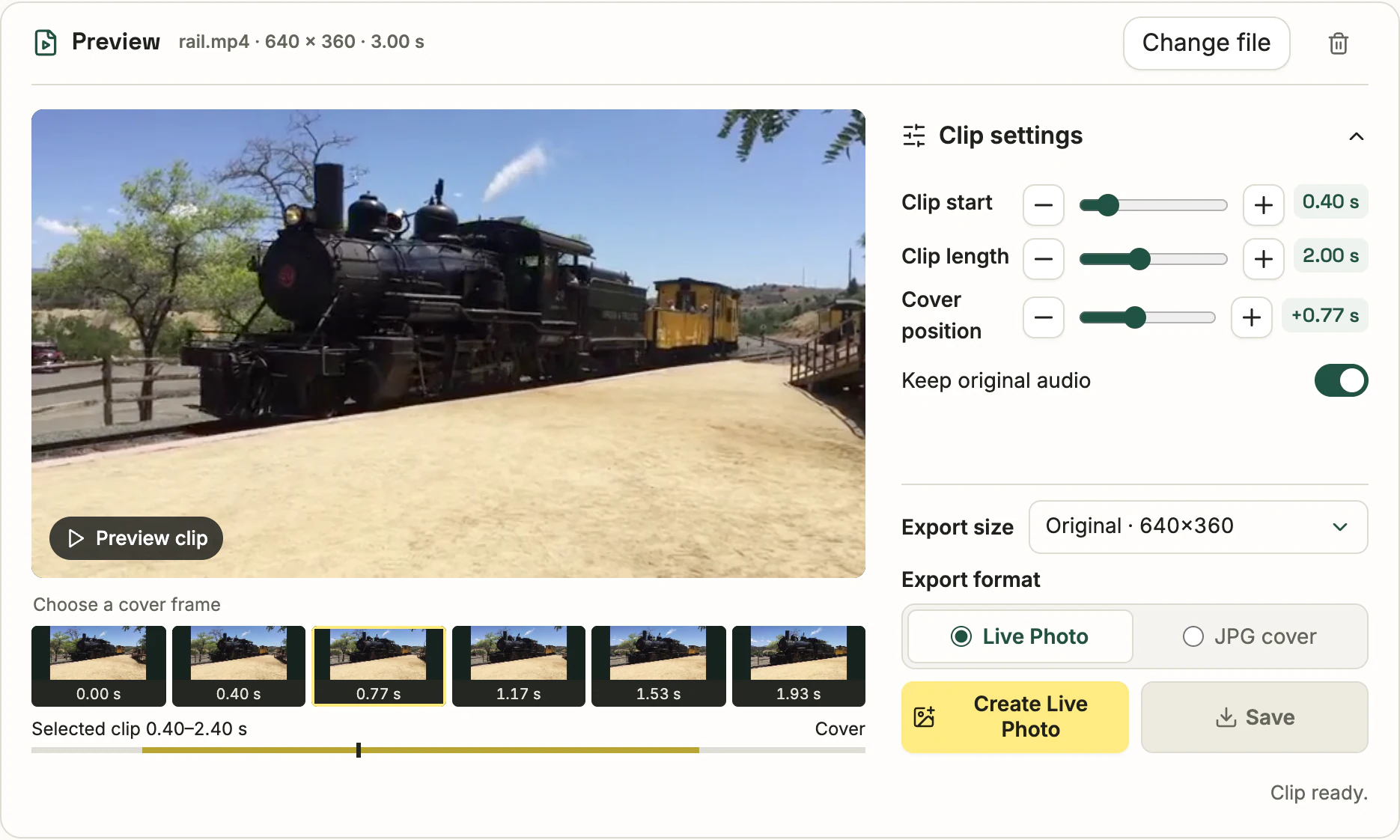
Adjust Clip start and Clip length, then select Preview clip to check both ends.
Pick a cover and create
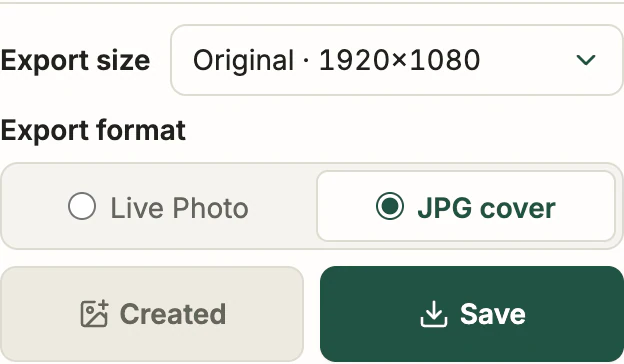
Select a thumbnail and choose Create Live Photo. For a still image, choose JPG cover and select Create JPG cover.
Preview and download
Hold the finished photo on a phone or click it on a computer to play it. Select Save. To export a silent version, turn off Keep original audio and create the photo again.
Cross-device workflows built into Live Photo Maker
Beyond creating Live Photos from videos and GIFs, you can open existing moving photos and repackage them for another device.
Cross-device
iPhone Live Photo ↔ Android Motion Photo
Open an Apple Live Photo archive/MOV or Android Motion Photo, then pick the receiving phone under Destination device.
Mac Finder
Native .pvt.zip Live Photo package
Packages the paired JPG, MOV and metadata.plist into a .pvt bundle you can unzip and preview with Spacebar in Finder.
Galaxy / Pixel
Tailored SEF & XMP Motion JPGs
Writes Samsung SEF records for Galaxy Gallery and standard Android Motion Photo XMP for Pixel and compatible Android galleries.
Chat fallback
Instant MP4 copy for messaging apps
When a chat app strips motion from photos, use Save as a video (MP4) to send the exact same clip.
Live Photo gallery
Illustrated guide
Open a video or GIF
Select Choose a file in the preview and open a video or an animated GIF from your device. On a computer you can also drop the file into the dashed box. Its name and preview appear in the same editor.
Select Edit a sample to open the coastal clip in the editor. To try the scene pictured below, open Steam train arriving in the gallery and select Edit this sample.
Trim the action and choose a cover
In Clip settings, set Clip start where the action begins, then set Clip length. The example starts at 0.40 seconds and runs for 2.00 seconds, keeping the part from 0.40 to 2.40 in the source.
Pick a thumbnail underneath the preview, then fine-tune it with Cover position.
Keep the approach in the clip, then pick a later frame where the front of the engine is clearly in view. Select Preview clip to check the cut. If your recording has sound, use Keep original audio to include it or turn it off for a silent photo.
Create, preview and download
Export size defaults to Original. Select Create Live Photo, preview the motion, choose your target under Destination device and select Save.
Mac
Unzip the downloaded .pvt.zip, select the .pvt in Finder and press Space to preview.
iPhone / iPad
Save via the iOS share sheet, or unzip the paired ZIP in Files for a Live Photo importer.
Android (Galaxy / Pixel / Xiaomi)
Exports Samsung SEF, .MP.jpg or MVIMG_*.jpg Motion Photos ready for compatible Android galleries.
For a single frame, choose JPG cover, select Create JPG cover, then Save. If you already created the Live Photo, its cover is ready to download.
Common questions
A Live Photo has a cover and a short recording. You see the cover while browsing your library and the motion when you play it. Live is a playback indicator in iPhone Photos. The filename does not need a .live extension.
Saving for the current device gives you a .pvt.zip on Mac or a JPG with the movie inside on Android. An Apple Live Photo needs its JPG cover and matching MOV together. A ZIP keeps the pair in one download. To share just the motion, choose Save as a video (MP4).
In iPhone Photos, open the picture with the Live badge and press and hold it. On Android, open the original JPG in a gallery that supports Motion Photos. In Samsung Gallery, tap View motion photo. A file-manager thumbnail usually shows only the cover.
If you just saved a JPG cover, switch to Live Photo in the same editor and select Save. On Windows 11, a version of Microsoft Photos with Motion Photo support can also play a motion JPG.
If a friend only sees the cover in chat, select Save as a video (MP4) and send them the same clip as a video.
Open the paired MOV, an Apple Live Photo package or the original Android Motion Photo. Pick a cover, choose the receiving phone under Destination device, then create and save the photo.
Keep the file open, pick another thumbnail and select Create Live Photo again. Check the new cover before downloading.
After creating your moving photo, choose JPG cover and select Save. Switch back to Live Photo to save the motion version.
Original size keeps the source dimensions and orientation, with up to one pixel of padding for encoding. The motion is encoded again, so fine detail can change. Choose 90%, 75% or 50% if you want smaller dimensions.
The file is processed on your device. Download the result before closing the tab so you can keep it.
 livephotohub.com